Product update: November 2025

Summary
November was action-packed, introducing several delicious new features and improvements:
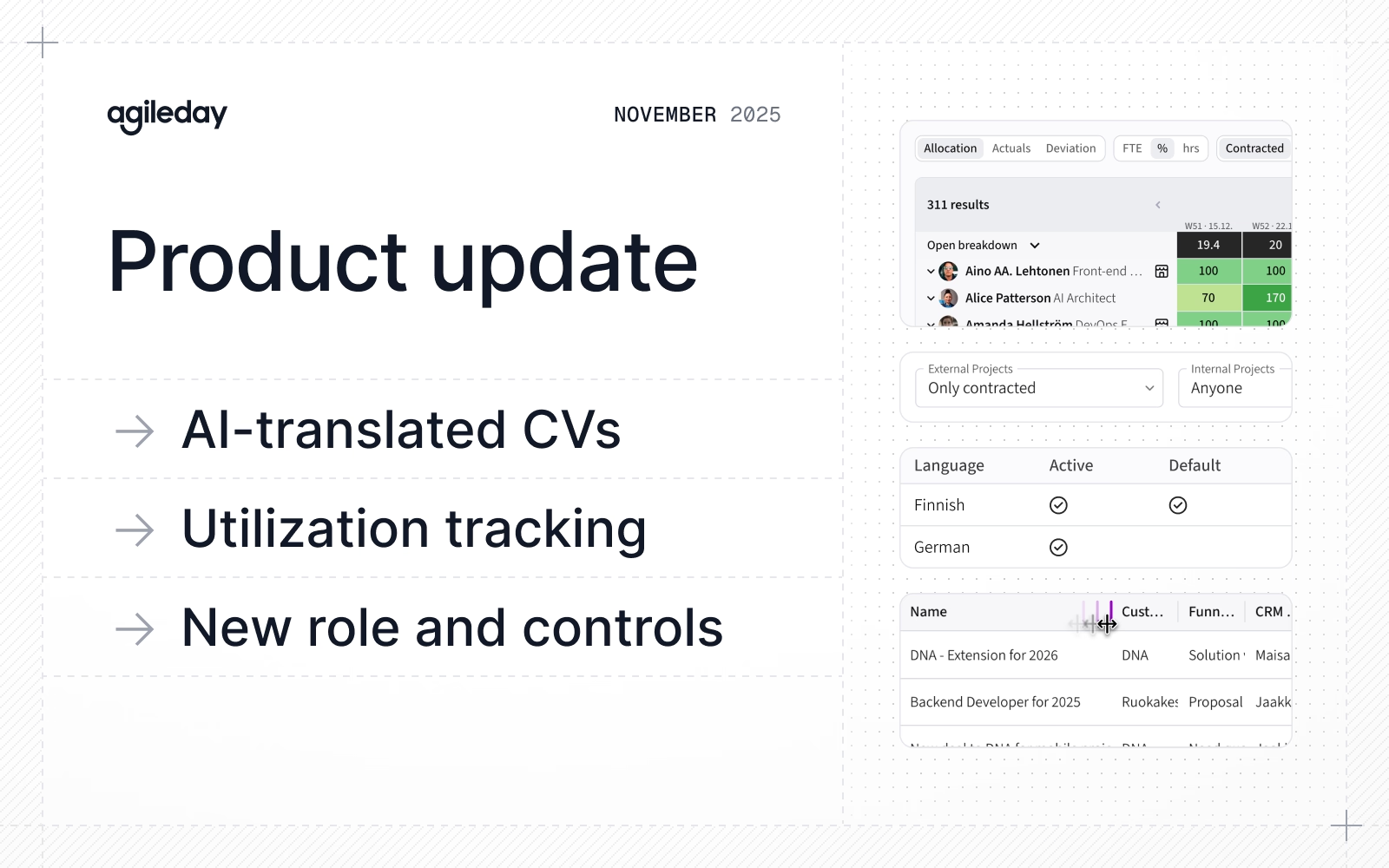
- AI-translated CVs: Translate CVs with AI, translate skills, and manage languages in settings.
- Utilization tracking: See the share of customer work related to all work, and follow the deviation between the two.
- New role and controls: Assign the new Limited employee role for view-only access, and define global and role-specific time reporting rules.
- Improvements and fixes: View reference recommendations, mark all notifications as read, add project assistants, resize tables, see forecast deviations, and much more.
Let’s jump into the details.
AI-translated CVs
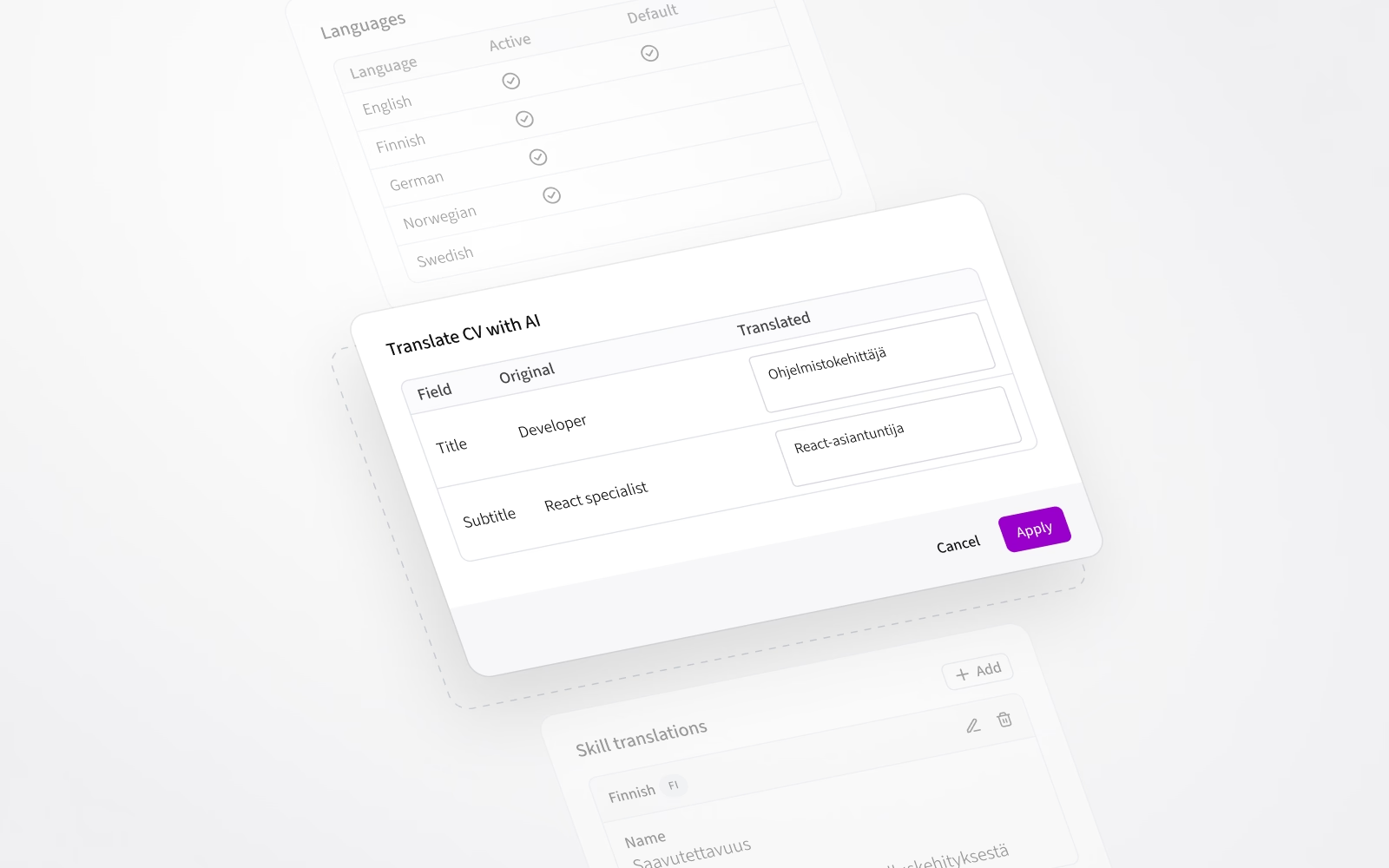
Companies operating internationally will benefit from the new ability to translate all CV content in a single step using our built-in AI translation tool. This should make CV translation significantly faster while keeping you in control.
In addition, it’s now also possible to manage language variants for each skill, enabling users to search for skills in any active language.
Talking about active languages, we’ve added a new Languages settings section (under the Localization section) to manage them. This way, you can manage which languages are active in your Agileday environment.
Combined, these features will simplify how companies run international operations on Agileday.
Utilization tracking
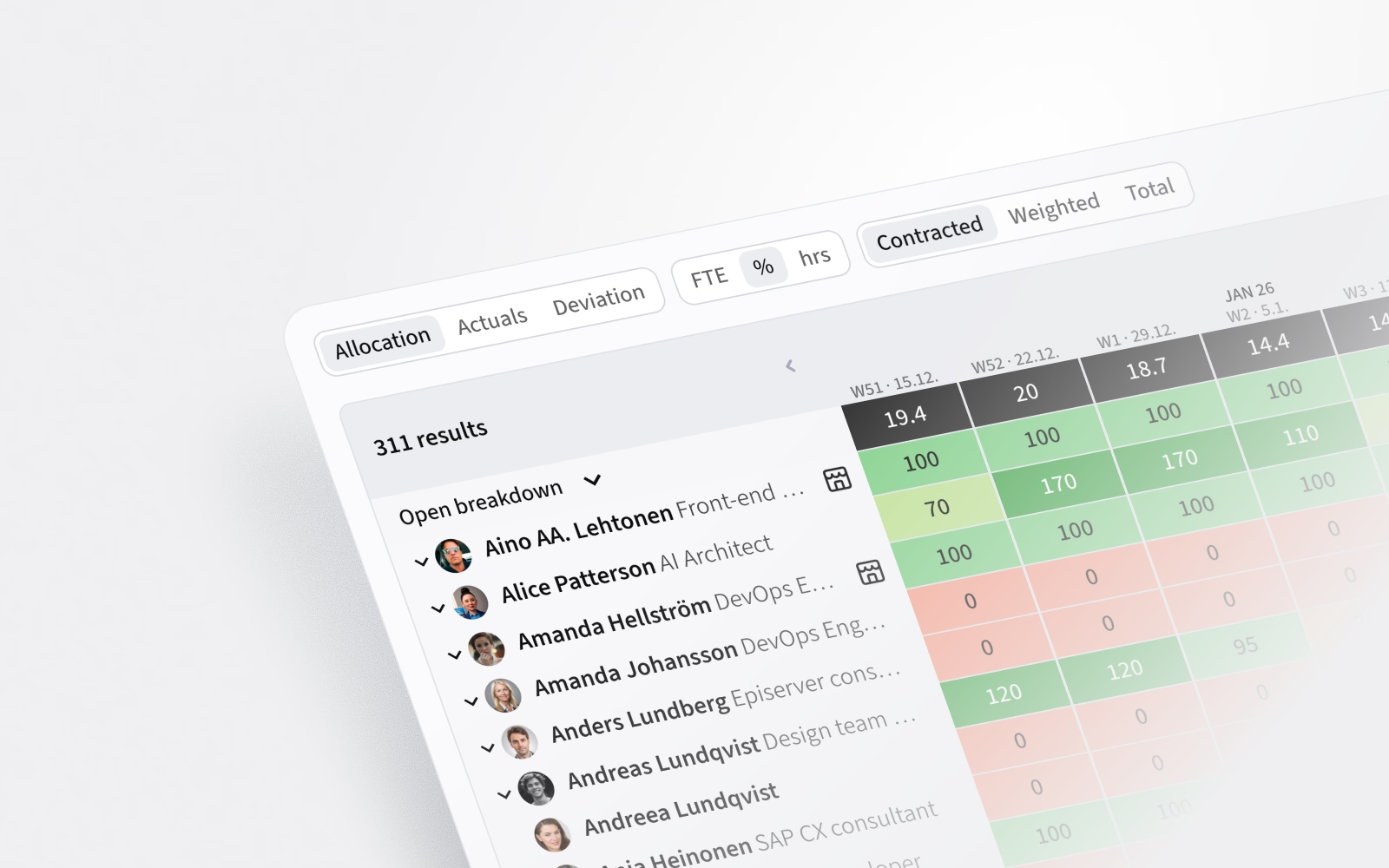
Utilization tracking enables you to view the proportion of a person's time spent on customer work. The numbers represent allocation (planned utilization), actuals (realized utilization), and deviation (the difference between the two).
Regular users can view their utilization in the time reporting My hours section. Admins can view utilization numbers for all or selected users on the People page (under Allocations) and in the Actuals view (under Timesheets).
New role and controls
We have two new neat features:
- Limited employee role
- Setting for who can report hours
Users with the new Limited employee role have the same data visibility as regular employees, but can’t edit projects, modify allocations, create/edit openings, or contract/uncontract users. This role can be handy for companies where employees have access to a wide range of data but should not be able to edit it. The role is available when setting user roles in the User Management setting section.
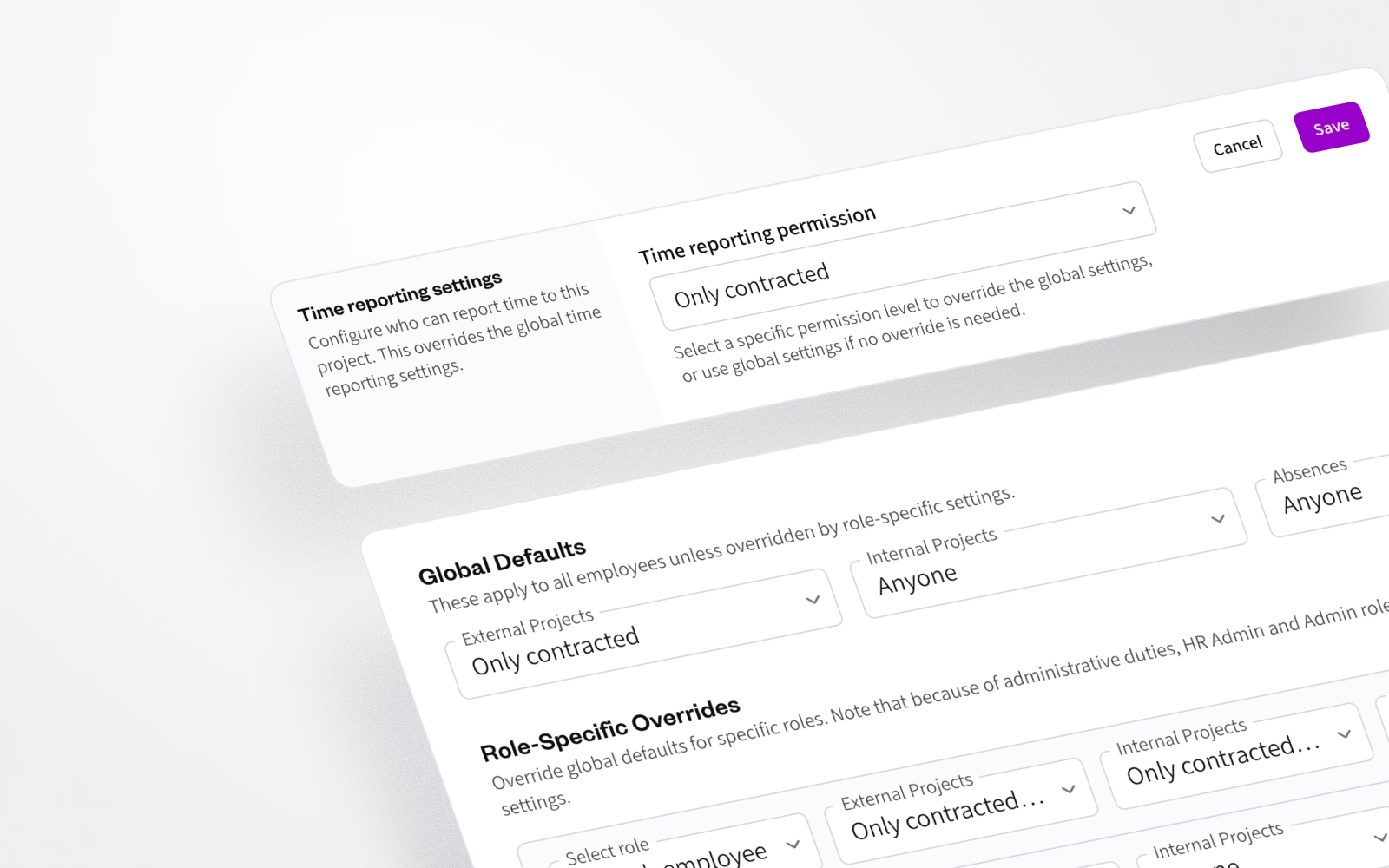
In Time reporting, employees have so far been able to report hours to any active project. From now on, it’s possible to define global rules to control who can report hours to the available project types (External, Internal, Absence). In addition, each project can have a project-specific override for the global rules.
The available options for who can report hours are:
- Anyone (default)
- Only contracted
- Only contracted with allocation
- No one
Together, these two features will give companies greater flexibility in how they allow their employees to contribute to and participate in their projects and business.
Improvements and fixes
But wait, there’s even more! November was also packed with useful improvements and fixes, including:
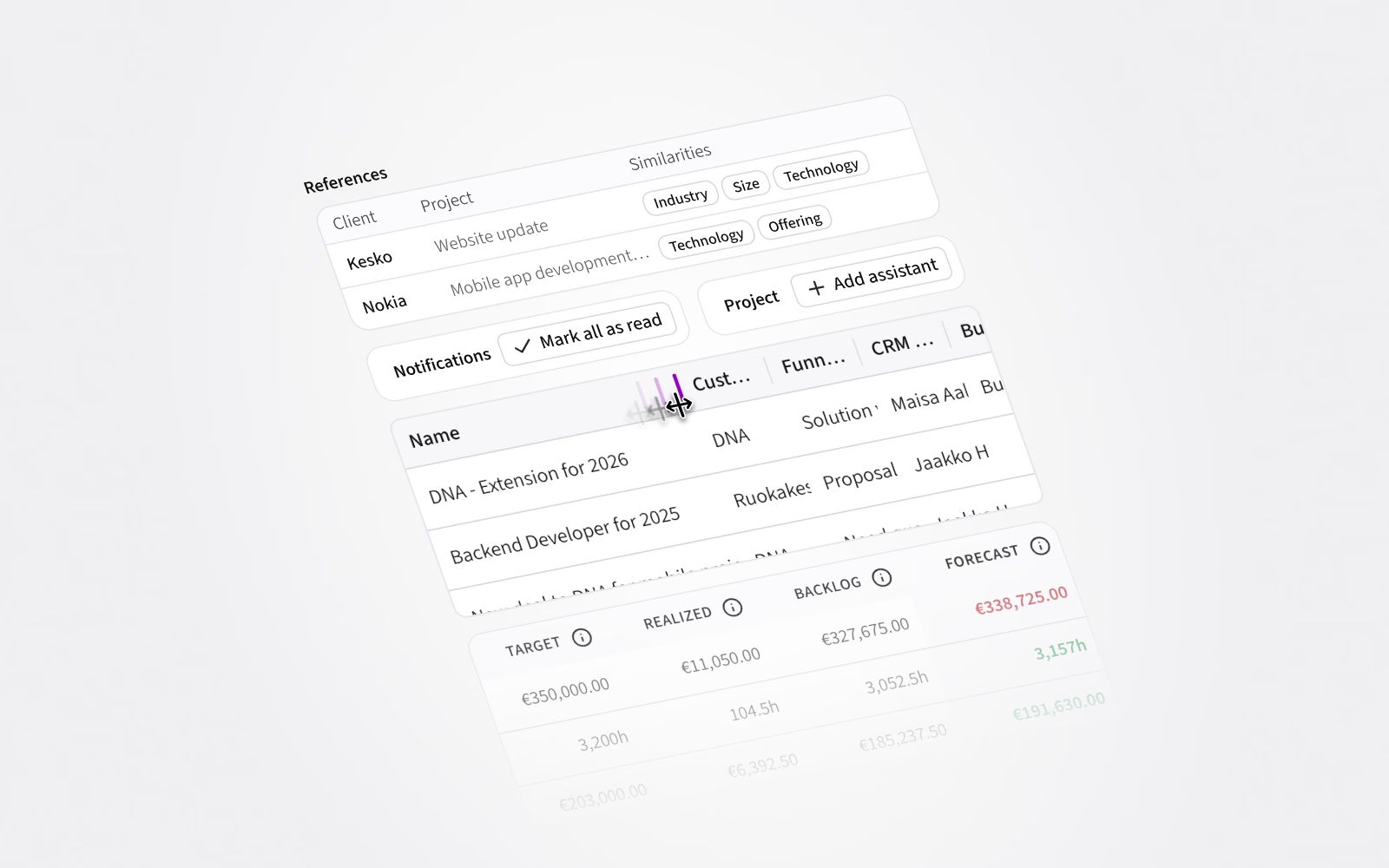
- Opportunities now include a new AI-powered section to highlight relevant reference projects.
- Notifications can now be marked as read with a single click.
- Our tables got a facelift, and some of them now also rock resizable columns.
- In addition to the Project Manager, it’s now possible to assign Project Assistants to a project. While the Project Manager remains the one person responsible for a project, Project Assistants have the same extended permissions as Project Managers to support the Project Manager. For example, they can edit the project, view financial data, and manage tasks.
- In the Finance tab data table, forecasts that fall below target are now visually highlighted for easier identification.
- When setting Targets for a project, you can now also add notes for additional context.
- We improved performance in several places. The most noticeable improvements can be found in the People page under allocations, as well as in the project’s Finance tab.
- In the Hours page under Billing, we added links to the user and the project for easy access.
- In the profile CV tab, we now display a project’s skills alongside other project information. In addition, users can also edit the skills.
- When entering allocations, it’s now possible to specify values in hours or days per week. If statutory holidays occur during a given week or month, the allocation for that period is automatically adjusted accordingly.
- We added
createdAtandupdatedAtfields to thetasksendpoint. - We added Customer External ID, Finance ID, and Business ID to the
projectsendpoint. - We fixed an issue in the Company API where creating a new company failed if a manager was not set.
That's it for November, see you again next mo… year. Until then, let us know if you have any questions.