Product update: October 2026

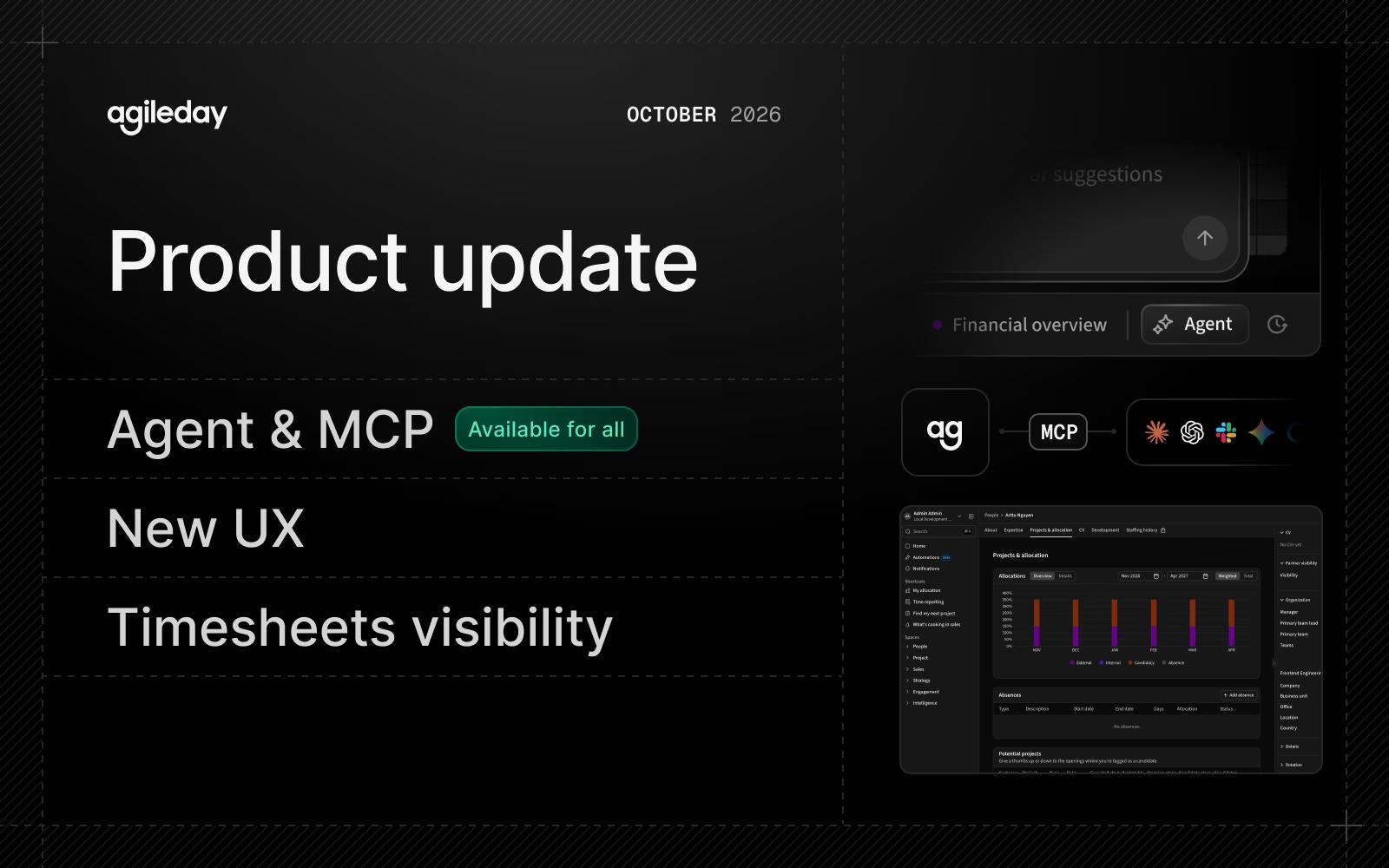
In October, every Agileday customer got the Agent, the new interface across all main areas and Agileday MCP for connecting their own AI tools.
Summary
- The Agent: Now available to all customers, working with your live Agileday data and your own permissions.
- Agileday MCP: Available to all customers and grown to 107 tools.
- New user experience: Opportunities, Projects, Billing, and Openings move to the new interface.
- Timesheets: Opened up to all users, with visibility based on each person's role.
The Agent
The Agent works with your live Agileday data, answers questions and carries out tasks once you approve them. Like MCP, it runs within your own permissions: if you can't see financial data, neither can the AI.
The Agent supports multiple AI models, so you're not dependent on a single provider, and keeps your data within your environment's region. All of this runs under Agileday's ISO/IEC 27001:2022 certified information security management system. The Agent is on by default for everyone except Subcontractors and Recruits.
Agent capabilities include:
- Approval before changes: The Agent previews what it will create or update and waits for your approval.
- Live preview: Ask it to visualize data and you get KPI cards, charts and short explanations instead of a long block of text. Describe in detail what the report should show, and download it as PDF or PNG. It can also build a financial dashboard from one or more Projects and Opportunities.
- Files: Upload files to give the Agent more context, including Word (
.docx) and Excel (.xlsx), which is useful for RFPs, SOWs, and rate cards. Older.docand.xlsformats, macro-enabled files, and password-protected files aren't supported. Uploads are private to you and deleted with the conversation. - Openings from a Statement of Work: When the Agent creates Openings, for example from an SOW, it creates the matching allocations too.
- Team Blueprints and Growth Plans: Openings proposed for a Team Blueprint appear in a preview panel where you can adjust them before they're created. The Agent can also suggest development areas and draft Growth Plans, and supervisors can do this for their team members.
- CV tailoring: Launch the Agent from Opportunity → CV to tailor CVs for that Opportunity, and edit the live preview by hand. The CV Editor also lets you create tailored CVs manually and link a CV to an Opportunity.
- Staffing and time reporting answers: The Agent distinguishes people currently assigned to a customer or project from those who worked there before, and lists current assignments first. It also separates saved from submitted hours, handles weeks that span two months and can find project tasks without a billing rate, a useful check on projects with task-specific pricing.
- Prompt library: Nine new default prompts cover month-end billing, project delivery summaries, portfolio data and budget checks, sales pipeline analysis, demand versus supply, team profiles, and workload analysis.
- Everyday use:
Cmd+J/Ctrl+Jopens the Agent, responses can be stopped and retried, mentions work, and the Agent's steps take less space. The expanded window docks again when you change page, keeping your conversation, drafts, responses in progress, and open artifacts. Responses are faster and more accurate, and the organization-wide Global Prompt is easier to configure.
Read why we built the Agent, and what comes next, in Automate everything: the day we built Agileday for is here. If you use Agileday, sign in to see AI capabilities and the Agent and the Agent FAQ in the help center.
Agileday MCP
Agileday MCP is now available to all organizations, with access still controlled per OAuth client and by each user's permissions. It grew from 70 tools at the end of September to 107, covering users, staffing, customers, projects, finances, and opportunities:
- Financials and time reporting: Read project hours and financials, and set financial targets.
- Project tasks: Manage tasks and task groups, including budgets and prices.
- Project and Opportunity settings: Commercial models, revenue recognition, time reporting settings, hour reporting permissions, and billing.
- Growth plans: Read, create, and update plans and their goals. Deleting isn't possible through MCP.
- Opportunity search: Results include deal value, currency, and close date, and can be filtered by close date.
- Project references: Project details include reference status and whether the project is confidential in CVs, which helps the Agent and other AI clients pick suitable references.
- Better answers with fewer steps: Timecard tools return totals by week, project, and day,
get_project_detailsincludes the project's tasks,show_timecardseparates planned from unplanned hours, andupdate_timecardwarns when hours will be recorded as unplanned because no allocation matches. - OAuth roles: Staffing Admin, Project Admin, Sales Admin, Limited Employee, and Subcontractor can be set as an OAuth client's minimum role, to limit MCP to admins or open it to subcontractors.
See the full list in the MCP guide.
New user experience
People, Opportunities, Projects, Billing, and Openings now use the new interface, joining Companies, Customers, Allocations, and Time Reporting, so every main area follows the same patterns. Filters are more granular and can be saved for yourself or shared with the organization, and most columns can be sorted. The login pages have a new look too.
Read more about the new Agileday interface.
Timesheets for everyone
People → Timesheets is open to all users, and what each person sees depends on their role:
- People Leads (supervisors): View, export, and unfreeze their direct reports' hours, and see their Actuals and Deviation in Allocations → People.
- Organizational unit managers: See all hours for the people and projects in their units. Comments on Absence project entries are hidden by default and configurable per project subtype.
- Employees: See their own hours and other employees' hours on non-restricted projects. That hasn't changed; the same data was already in Project → Actuals.
The page also shows more clearly whose hours, and which types of hours, you can view. If you import hours from another system, the new Actuals Without Time Reporting setting under Data Management → Allocations (on by default) lets HR Admins and People Leads use Actuals and Deviation in Allocations → People without Agileday's own time reporting.
Improvements and fixes
Sales and staffing
- Profile: Staffing notes are now timestamped entries, replacing the single free-text field. The profile sidebar shows the latest, and Profile → Staffing history shows all. Permissions are unchanged.
- Opportunities: The list has a Pre-sales Owner column; sorting by it puts Opportunities without a pre-sales owner first.
- Talent Search: Candidate cards show the person's job title under their name, or nothing if no title is set.
- Allocations: Allocations, Actuals, and Deviation load much faster when grouping or filtering by country or sorting by allocation. Expanding a user in Allocations → People sorts their Projects and Opportunities by customer, project name, and start date.
- Resizable columns: The first column in the Allocations Projects and People tabs, Customer → Allocations and Timesheets → Actuals can be resized, and each tab remembers its width.
Projects, financials, and billing
- Files: The Files tab of Projects and Opportunities accepts Word (
.docx) and Excel (.xlsx) files, visible to anyone with access to the Project or Opportunity.
People, HR, and time reporting
- Public holidays: Built-in calendars now cover more countries that previously had none, including Bulgaria, the Dominican Republic, and the Philippines.
- Profile Wizard: Updates an existing profile from a PDF CV. With Review and Update, you see the differences section by section and accept or dismiss each change, so nothing is overwritten without your approval.
- Opening External ID: A new filter in People → Timesheets → Actuals and a new column in the Hours and Allocations exports make it easier to match rows to Openings in an ERP or other external system.
Settings and self-service
- Customer-managed settings: Administrators can now turn on more features themselves in Settings instead of asking us: Growth Plan Assistant and Opportunity and Project enrichment (under AI and Agent Rules), regions for Users and Openings, hours as an allocation unit, the Candidate Kanban Board and candidate preferences, Opportunity creation from CRM, Time Reporting freeze logic and monthly alert, the Day view, Staffing notes, requiring a Service Account for API tokens, and SCIM options for creating organization units and setting an employment end date on deactivation. Existing configurations stay as they are.
- Removed feature flags: Opportunity and Project Files, In-App Notifications, and the Profile Wizard are now on for all organizations.
- Feature Groups: Roll out selected features to specific users. Each user belongs to one group, set in Settings → User Management or through SCIM's
featureGroupattribute.
API and technology
- Service accounts: Enabled for all organizations, governed by roles and scopes.
- Context Files API: Manages files in Projects and Opportunities: PDF, plain text, Markdown, CSV, RTF, Word (
.docx,.dotx), and Excel (.xlsx), up to 50 MB. The Agent can use them, for example to turn an RFP into Opportunity Openings, find suitable candidates, and tailor CVs for each Opening. - Staffing history: Notes can be filtered and sorted, and a new endpoint returns every employee's notes updated since a given time in one paginated request instead of one request per employee. Permissions and existing date parameters are unchanged.
- Employee API: Accepts an office's
externalIdas well as its Agileday ID, so HR system syncs don't need an extra lookup. - SCIM office assignment: HR systems can set an employee's Office by the office's
externalIdor name, once Office Assignment is selected as a SCIM-managed field in Settings.
For details and a list of bug fixes, see the release notes.
That's it for October. See you next month.